The session rail
4 min read
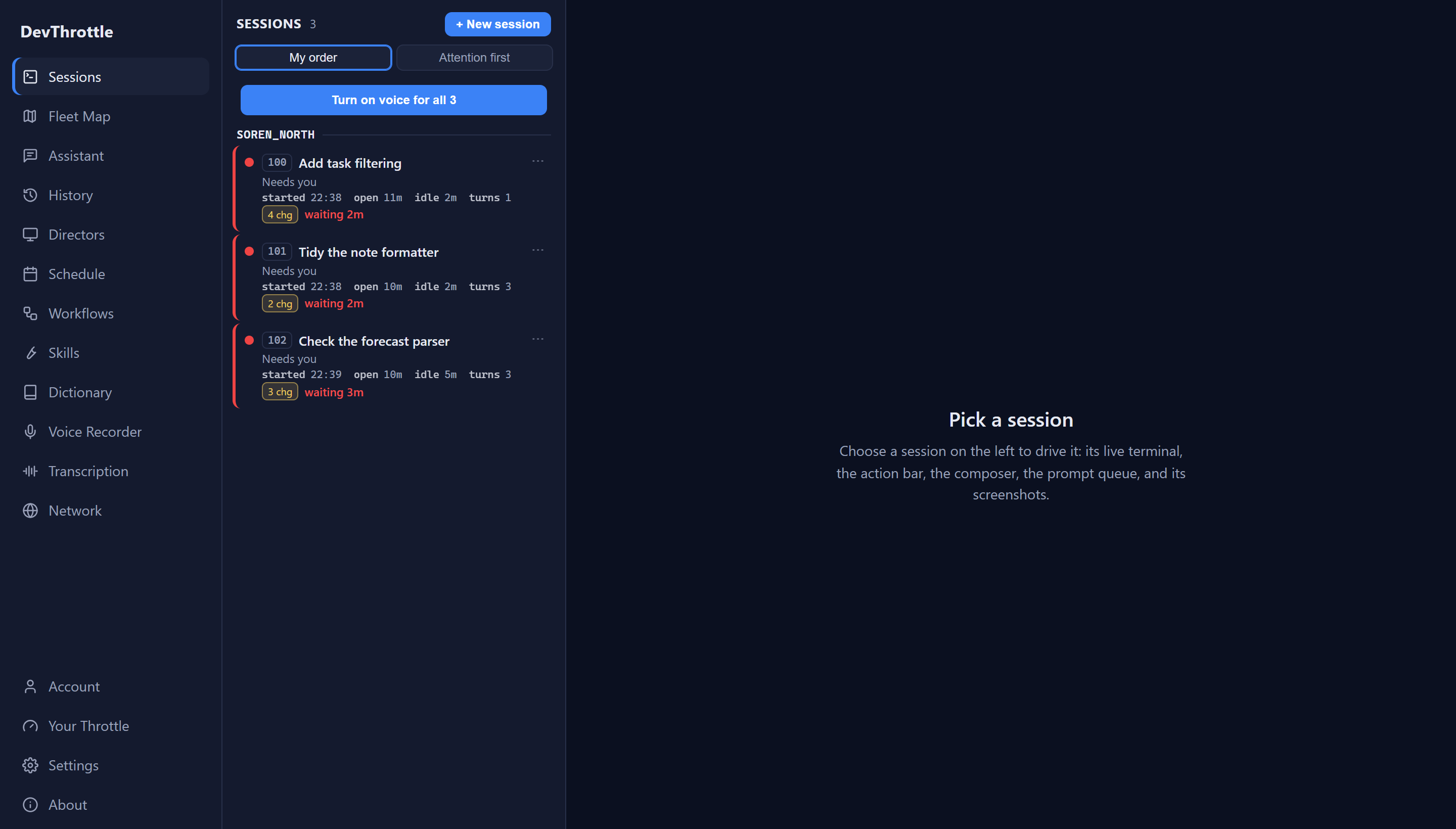
The left side of the Cockpit is the session rail: a single scrollable list of the sessions your Gateway holds - every session on every Director attached to it, whichever machine that Director runs on - in one column. It is how you find the session you want and see, at a glance, which one needs you.
Session numbers
Every card carries a short session number - a small badge like 102 or 104. That number is the name people actually use to refer to a session out loud: in a note, in a message to a teammate, or by voice. It is stable and short on purpose, so "take a look at 104" is unambiguous. The same number shows on the card in the rail and on the card in the Fleet Map, so a session reads the same everywhere you meet it.
Reading a card
Cards are built to be scanned. The session name wraps and reads in full rather than being clipped, and the card grows as the session has more to report - every line under the name appears only when there is something to put in it, so a quiet session stays short and a busy one is taller. Under the name is the status line, and under that the supervision timers.
Two visual states matter most:
- Selected. The session you are currently looking at is clearly marked so you never lose your place as the list updates.
- Needs you. A session waiting on an answer is colored red, and that attention color is kept deliberately distinct from the selected state - a card can be selected, or waiting, or both, and you can always tell which. A short timer ("just now", "waiting 8m") tells you how long it has been stuck.
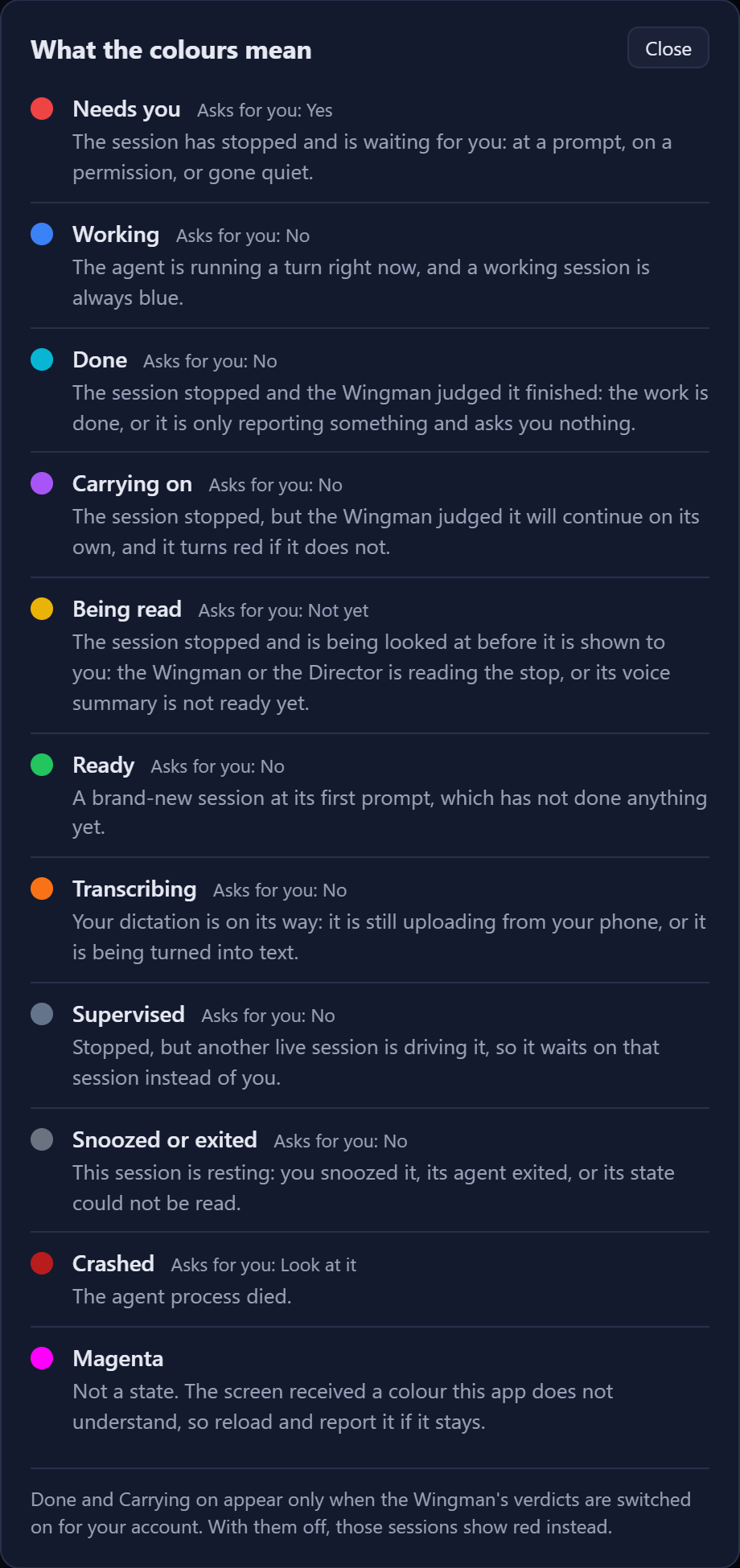
The status line is not the Cockpit's own reading of the session. The Gateway decides the state, its colour and its words, and every surface renders that one verdict - which is why the rail, your phone and the Director never disagree about a session. For the vocabulary itself, see session cards and states, or click What do the colours mean? under the ordering toggle for a short legend of every colour, read from the Gateway.
The supervision line
Under the status line, a card carries the facts you would otherwise have to open the session to learn: when it started, how long it has been open, how long it has been idle, and how many turns it has taken. They tick live. A figure the session's Director does not report is left out rather than shown as zero, so a missing number never reads as "nothing happened".
The badges
Along the bottom of a card sits a row of small tags, each present only when it has something to say:
- not delivered - in red, and always first. It means a message you sent did not reach the agent. Every other tag describes what the session is doing; this is the only one that says something was lost, so it leads. Hover it for the Gateway's own account of what happened.
- N chg - uncommitted changes in the session's working tree. It is the same number the Director's own rail shows - measured once, on the Director - and the badge is absent, never "0 chg", when the tree is clean or the count is unknown. See source control and history for what the count means and its limits.
- The model the session is running. It is the fact your fleet's cost and quality turn on, and until it appeared here it was visible nowhere while a session was alive. The chip is muted when there is no model to name - and the words say which kind of absence it is, because "this session has not finished a turn yet" and "this agent never reports a model" are different answers.
- voice when the session is narrating (see Wingman), winding down when it is on its way out, a wakes in countdown while it is snoozed, and Snooze ended when that timer has fired.
Turning voice on for the whole fleet
Directly under the ordering toggle is one button for the whole roster: Turn on voice for all N sessions - and, once any session is narrating, Turn voice off for all. It is the control for walking away from your desk and taking the fleet with you, without opening each session.
It reports what it did: how many sessions changed, and how many were skipped because the computer they run on is offline. A machine being unreachable never fails the rest of the batch.
Ordering: My order vs Attention first
A toggle at the top of the rail decides how the list is sorted:
- My order is the default - a stable, manual order that does not rearrange itself while you work. The list is grouped under a heading per Director, written as the computer and the port, so several Directors on one machine are told apart.
- Attention first regroups the whole rail into headed groups - Needs you, Working and Snoozed - with the longest-waiting session at the top of the first, so when several are waiting you can work straight down the list. Under the sessions that need you, a Done or carrying on band lists the ones the Wingman judged finished or carrying on by themselves: they stay in view, and they are not counted as needing you. A group with nothing in it is not shown.
Starting a new session
The + New session button at the top of the rail opens a picker for starting a session anywhere in the fleet. It has three steps:
- Machine - which computer runs it. The most recently seen is already chosen, so the rest of the dialog can load.
- Repository - one of that machine's recent repositories, or a path you type.
- Launch options - the agent, chosen from the agents that machine has configured and enabled, and the permission mode: Skip permission prompts or Ask for permissions. A line at the bottom reads back how the session will start: the agent, the model it will use, and the permission choice.
Then Create session, and it starts on that machine. You do not have to be sitting at that computer. Your agent and permission choices are remembered for next time.
The session menu
Every card has a three-dot session menu (the same menu also sits at the top of the open session page). It holds the actions that manage the session itself, rather than steer the agent:
- Rename - give the session a clearer name.
- Snooze / Unsnooze - quiet a session you are not working on right now, and bring it back when you are. Snooze for offers specific lengths when you want something other than your default.
- Handover info - the session's identity block: its name, session id, repository, Director, machine, and version. It is what you copy when you hand a session off or ask for help with it.
- Close session - end the session for good. This one asks you to confirm first, because it cannot be undone.
Where to go next
- Working in a session - the terminal, chat, and voice views, and the controls for steering an agent.
- The Fleet Map - the same fleet seen as a map instead of a list.