Two agents fit in your head. You know which one is in which repository and roughly where each has got to. Somewhere around five, spread across a desktop, a laptop and a box under the desk, they stop fitting. The question you keep asking is not about any one session. It is: what is the whole fleet doing right now, and does any of it need me?
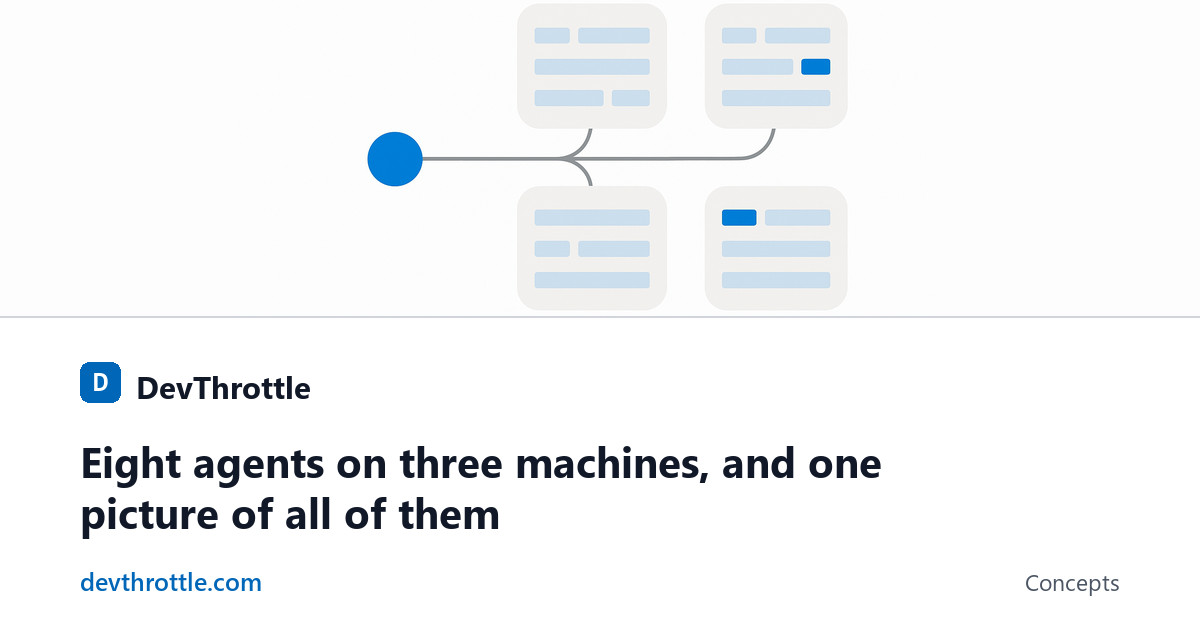
A list answers that slowly - you read it top to bottom and assemble the picture yourself. The Fleet Map in the Cockpit draws the picture for you: your Gateway at the root, branching out to panels of session cards, each card carrying a status dot.
Read the header first
Beside the title the map counts what you are looking at: how many sessions, on how many machines, in how many repositories - then N working in blue and N needs you in red. A count that is zero is left out rather than shown, so on a calm day the red figure is simply not there. That one number is why most people open the screen at all.
One fleet, eight ways to look at it
A row of pivots at the top right regroups the same sessions along different lines. Pick the one that matches the question you are asking. The map remembers your choice and reopens on it.
- By machine and By director - what is running on that box. A reachable Director with nothing running still shows, as a free slot, so you can see where there is room for the next session.
- By repository and By working tree - two different truths about the same fleet. By repository rolls every worktree and clone of a project into one panel: who is touching this project. By working tree gives each checkout folder its own: is anyone else in the folder I am about to work in.
- By agent and By model - which tool each session runs, and one step down, which model inside that tool. A session whose model is not known gets a lane of its own instead of disappearing into the others.
- Fleet list - a flat grid of every session with a legend of the status colours, for a plain inventory.
- Missions - the fleet grouped by why the work exists, each card carrying its reason, with sessions that belong to no mission counted as standalone. Missions with nobody on them right now are tucked away behind N empty hidden; hiding one does not end it.
On every grouping except Missions, Search titles filters the map to the sessions whose titles match. The ones that remain keep their order, so the map does not reshuffle under you. Clicking a card opens that session.
When a machine goes quiet, nothing jumps
A fleet spread across several computers will sometimes lose one for a moment - a laptop that sleeps, a Wi-Fi blip. A map that dropped those sessions and reflowed every time would be worse than no map. So a card changes appearance in place instead:
- Wobbly - the Director is connected but nothing recent has arrived. The cards dim and show how long ago they were last seen, and usually recover on their own.
- Offline - the Director cannot be reached. Its cards stay dimmed with their last-seen age, so a real outage reads differently from a hiccup.
- Not running - a Director that was shut down rather than lost, labelled so a planned shutdown never reads as an outage.
Because nothing disappears, you never lose track of where a session was.
The habit
Leave the map on By machine or Missions, glance at the red figure, and only open a card when it is above zero. Everything else is working, and the most useful thing you can do for it is leave it alone.
Every pivot and state is described on the Fleet Map page. For a guided walk through it, see the Fleet Map tutorial.
Run your agents from one control room
DevThrottle orchestrates command-line coding agents across your machines.
Create account