Step 8: Where else your fleet lives
5 min read
Everything so far has happened inside one window on one machine, and it is a fair conclusion from that the window is DevThrottle - that your agents are somewhere inside it, and that they are only reachable from the chair you are sitting in.
The second half of that is not true. Your agents run on your machine, started and owned by the Director, and what draws them on a screen is a different question from what runs them. Two other things draw them, and the sessions you have been running are already in both. Five minutes of looking; you need the Director open with the sessions from Run several at once.
Open the Cockpit
Along the top of the Director, beside Settings, is a button reading Cockpit. Click it. That is the only thing this page asks you to do.
The Director asks your gateway where its Cockpit is and opens the address it gets back. If you run your own gateway and its private network is down, there is no address to give: the Director says so and opens nothing, rather than sending you somewhere that would only work on this one machine.
The first time, the browser lands on a sign-in rather than on your fleet, and that is the flow working - this browser is not your machine, and it is let in on its own account. One screen, then devthrottle.com asking Connect this device? and naming the browser it means, something along the lines of Edge on Windows. It stays signed in from then on, until that device is removed from the account.
Then the Fleet Map, which is where the Cockpit opens: a node for your gateway, branching down through your machine to a card for each session you have been running. Same names, same colours. A rail down the left leads to Sessions, the Fleet Map, Assistant, History, Directors and more - what each one does is on The Cockpit.
Behind Sessions, the roster is your fleet again, and opening one gives you its terminal - live, and typeable, every keystroke going through to the agent as it does on your desk. None of it is read-only.
And none of it has to be on this machine. It is a browser tab: a hotel laptop, a borrowed desktop, a machine with nothing of yours installed on it.
The same fleet, in your pocket
The other window is your phone. There is nothing to download from an app store - your gateway has one address, and when a phone asks that address for a page, the gateway sees what is holding it and serves the phone app instead of the desktop pages. Same address, and the choice is made before either one loads.
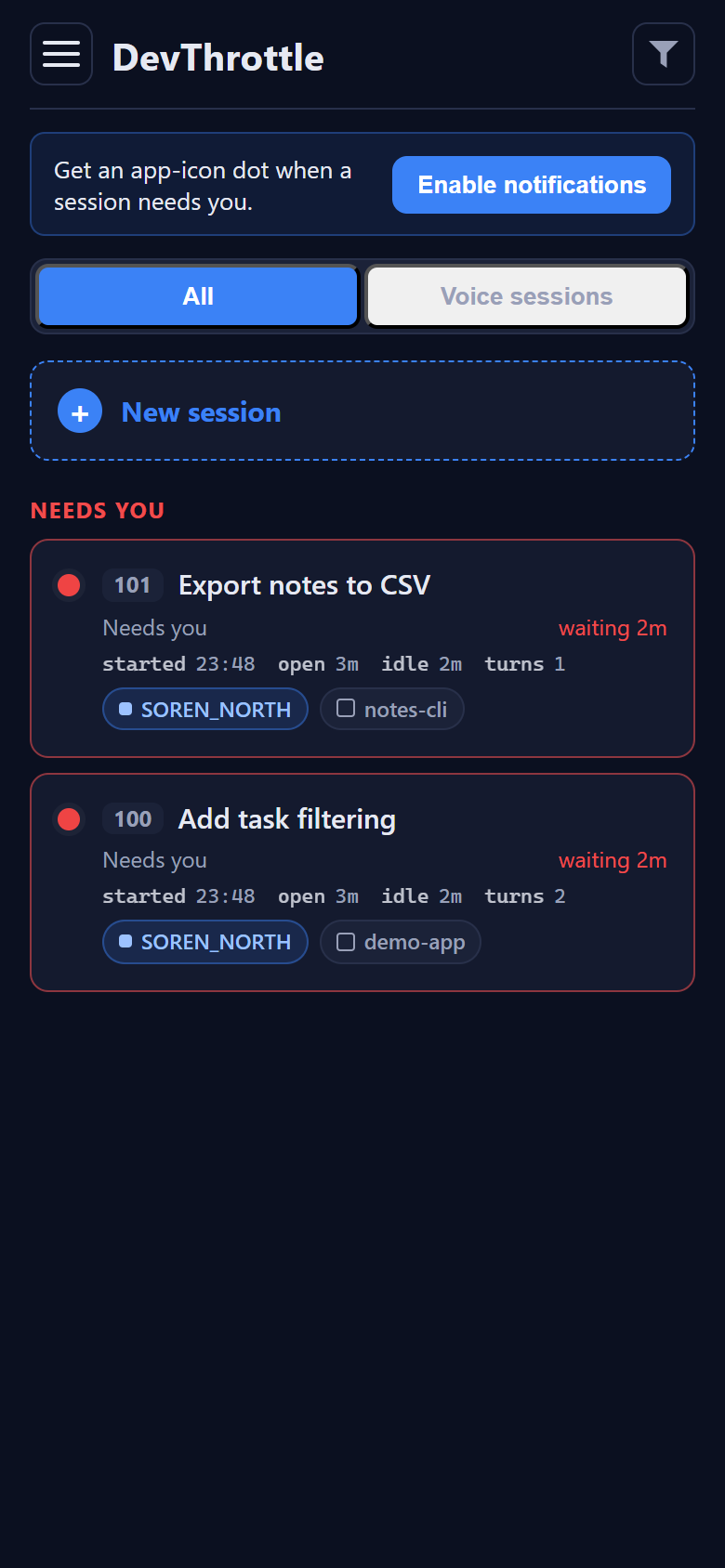
Sessions waiting on you are lifted to the top under Needs you, longest wait first, so the roster reads as a queue to work down rather than a wall to scan. A card shows what is known about its session - when it started, how long it has been open and idle, how many turns it has taken, and, on one that is actually waiting on you, how long it has been waiting. Facts the machine has not reported are left off rather than shown as zero.
A session opens onto a screen it can be answered from, by thumb or by voice. And with notifications on, the app icon carries a dot while something needs you and loses it when nothing does - which is the part that changes the shape of a day, because it is the end of checking.
One fleet, not three copies of it
These are not three programs each holding their own version of your work. There is one fleet, and one verdict about it.
That is more literal than it sounds. A session's colour is decided in exactly one place: the Gateway folds everything it knows about the session and stamps the answer onto it, and the Director, the Cockpit and the phone all render that stamp. None of the three works it out for itself. The desktop used to, and that was the bug rather than the design - it could only see its own machine, so a session snoozed from a phone still read as waiting on the desk while the other two had it right. The browser and the phone go further and refuse to guess at all: handed a session the Gateway has not stamped, they raise an error rather than invent a colour. That is why the three cannot quietly disagree about your own fleet.
So closing the tab and pocketing the phone changes nothing. Nothing was running in either of them.
Next
You have seen where else your fleet lives. What turns the second half of this page from a screenshot into your own roster - and puts the dot that means something is waiting on your own phone - is the next step: Pair your phone with your fleet.