Working with sessions from your phone
6 min read
Once your phone is paired, the whole fleet travels with you. This page covers everyday session work from the phone: reading the roster, starting a session, chatting with an agent, watching its terminal, and opening the files it produces.
The home roster
The home screen is your session list, refreshed every few seconds. It has two lenses, side by side at the top: All, and Voice sessions. On the All tab the list opens in attention order: sessions waiting on you under Needs you, longest-waiting first, then a Done or carrying on band for the sessions the Wingman judged finished or carrying on by themselves, then Working and Snoozed. The Order switch changes to My order, which groups sessions by machine in the same order as in your Director. Below it, What do the colours mean? opens a short legend of every status colour.
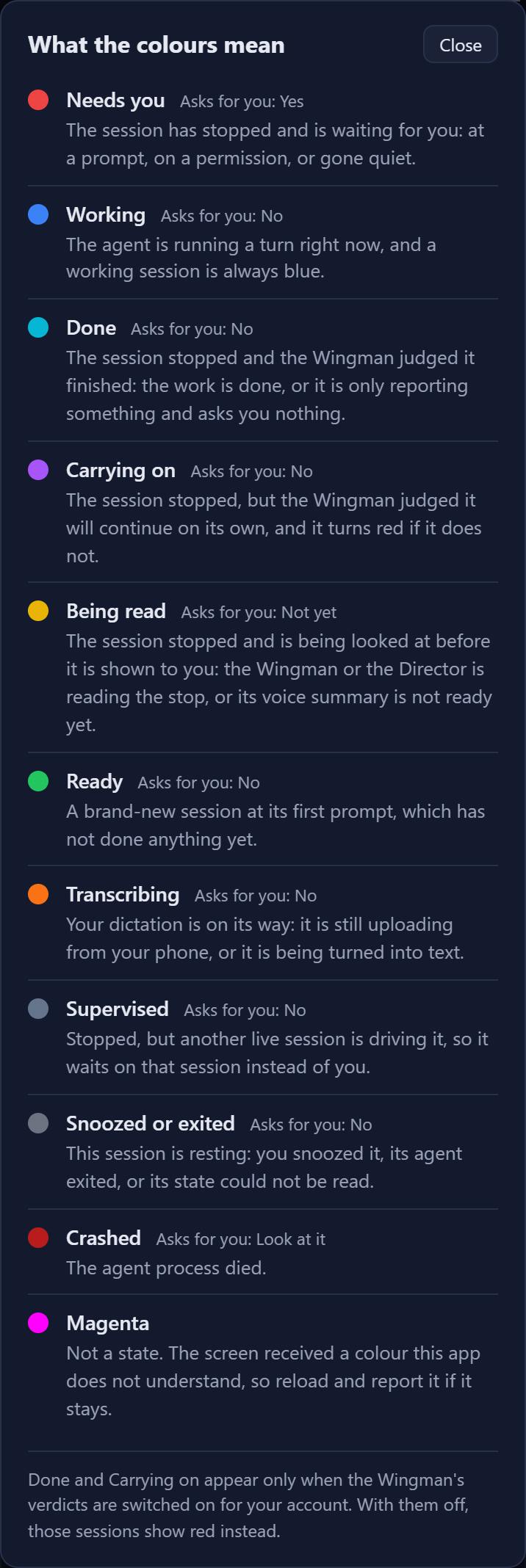
Each row tells you a lot at a glance:
- A colored status dot and a line describing what the session is doing right now - with a live waiting timer on anything that needs you. Both the colour and the words are decided by the Gateway and painted by the phone, so a session reads the same here, in the Cockpit and on the desktop.
- The session's short number in muted type before its name - the same three digits the desktop rail shows, so you can say "look at 102" and both screens agree. Sessions without a number simply show none.
- A line of supervision facts: when the session started, how long it has been open, how much of that it spent idle waiting on you, and how many turns the agent has finished. A fact the machine does not report is left out rather than shown as zero.
- Small chips for the machine and repo the session runs in.
- A wakes in 3h 48m countdown on a snoozed row, ticking down to the moment it comes back to you, and a Snooze ended badge once a snooze has expired on its own.
- A red not delivered badge when a prompt never reached the agent. It is sticky on purpose - it clears when something actually lands, never on a tap and never on a timer - because a prompt that quietly went nowhere is the one failure you must not be able to wave away.
- A neutral winding down badge on a session that has been flagged for deletion. It is a badge and never a colour: the dot keeps telling the truth about the work while this rides beside it.
- A dictation badge while a spoken prompt is still uploading or transcribing, so a voice reply is never silently in limbo.
- On voice-mode sessions, a play triangle appears when a spoken update is ready - tap it to listen without leaving the roster. Where the Gateway has said it cannot make audio for a session, the row reads No voice instead of offering a play button that leads nowhere.
The Voice sessions tab is the other lens: the sessions that can speak to you right now, gathered under Ready to play. It carries two controls the All tab does not - a fleet-wide switch that turns voice mode on for every session at once, and off again, and an Auto-speak checkbox that plays each waiting session in turn without a tap. They are two different things: voice mode is about your whole fleet and lives on the Gateway, Auto-speak is about this phone. Both are covered on Voice Mode.
If more than one DevThrottle account is signed in on the phone, an account switcher appears in the top bar of the roster, so a list of the wrong account's sessions can never be mistaken for yours. Adding and removing accounts is on the pairing page.
If a machine drops off the network its sessions are kept and grayed, never removed - the row says it is reconnecting and when the machine was last seen. The same idea applies app-wide: on a bad connection the app keeps showing the last known information and says so in a banner, rather than blanking the screen.
Managing a session
Chat, Terminal and Voice mode share one app bar, so the same verbs sit in the same places on every session screen. Navigation is on the left: Sessions, with a back arrow, takes you to the roster. Everything else is behind the three-dot menu on the right, which keeps the rare and destructive verbs away from your thumb:
- Switch to voice mode - offered on Chat and Terminal; it opens the session's Voice mode and turns voice on.
- Snooze and Unsnooze - quiet a session so it stops asking for you, and wake it again. They are in this menu on Chat and Terminal, whose bottom of the screen belongs to the message box; Voice mode has room for Snooze as one of its own big buttons instead, so the verb is never in two places at once.
- Remove session - the destructive one, two taps away and never under your thumb. It asks first: Remove this session? This will terminate it. This cannot be undone. with Cancel and Remove.
Under the session name, a pill shows a snooze that is in effect, with the time left beside it. Snooze a session while its agent is still working and the pill reads Snoozing when it finishes - the snooze arms when the work ends, so asking for it mid-turn tells you something happened instead of looking like nothing did. If a prompt to this session was never delivered, the red not delivered banner rides here too, on whichever screen you are on.
Starting a session
Pick the machine
Open New session from the roster or the menu. Every machine running a Director is listed with its uptime; the one you used most recently is pre-selected.
Pick the repository
Tap one of the machine's recent repos, or type a full path under Or enter a path and tap Create session.
Talk to it
The new session opens in Chat, ready for its first prompt. Session creation from the phone is deliberately simple - agent and model choices live in the desktop New Session dialog.
Chat
Chat is the default view of a session: the live conversation, cleaned up into speaker-labeled bubbles. A Show filter lets you also reveal Tool calls, Results, and Thinking - hidden by default, remembered on this phone.
The composer under every conversation has three verbs:
- Send - type a prompt and submit it.
- Speak - dictate instead. You talk, tap Pause to see the text (edit it if you like), then Insert it into the box or Send it straight to the agent. A spoken send keeps working in the background even if you leave the screen - the status strip and roster badge track it.
- Attach - open the camera or photo library and attach an image. The photo is saved into the Director's screenshots folder on the machine the session runs on, and its path is inserted at your cursor, so you can add a sentence and send. This is how you show an agent a screenshot.
- Quick keys - Enter, Esc, Stop, and arrows - for answering an agent's menu prompts without opening the terminal.
Links in the conversation are live: URLs open in a new tab, and file paths open the built-in file viewer. Both carry a copy button.
What Chat reads is the Gateway's own copy of the conversation, not your machine. Each computer sends its finished turns up as they happen and the phone polls that copy every couple of seconds - which is why a conversation you have already had stays readable when the machine that ran it is asleep, off the network, or simply shut. When the stored copy is real but no longer current, a notice sits above the bubbles and says which of those it is: the computer has not checked in recently, or it is running an older DevThrottle that does not send conversations and needs updating. You are never left waiting for messages that were never going to arrive.
Terminal
The Terminal tab is a live mirror of the session's real terminal, streaming as the agent works. Zoom with A- and A+. The button in the corner swaps between two ways of sizing the mirror and is labelled with the one it will switch to: Fit squeezes the terminal to the width of your phone, 1:1 shows it at its real size and lets you pan. If the stream drops, the last screen stays visible while it reconnects, with a small note saying so.
The terminal fills the screen with nothing else on it until you tap Keys, which reveals the same control panel Chat has - the message box, Speak, Send, and the Enter, Esc, Stop and arrow keys - so you can answer a prompt without leaving the terminal. Tap Hide keys to get the room back.
Files
Tap any file path - in Chat or in the terminal - and the file opens in the app: images, PDFs, HTML, Markdown, and code all render in place, and anything without a preview offers a download. A Download button saves the file to your phone.