Work that runs without you
8 min read
Some work does not need you present. Checking dependencies, sweeping issues, running a report first thing Monday - the kind of job you always mean to do and never quite do. DevThrottle can start an agent on a schedule and let it get on with it.
About ten minutes. You need a Gateway and at least one machine with a Director running, because a scheduled job has to have somewhere to run.
Open Schedule and start a new job
In the Cockpit, choose Schedule in the left rail, then New cron job. Give it a name you will recognise in a list months from now. The list will also show what the job runs, where, and on what schedule - but the name is the first thing you will scan for when you come back wondering what this is.
Choose where it runs
Pick the machine under Run on, and give the repository path the session should open in. Both matter: a scheduled job is a real session on a real machine, not something that happens in the cloud.
WarningIf the machine list is empty, no machine is currently known to this Gateway. Entries leave the list when a Director shuts down cleanly or has been silent for a day, so an empty list is about now - it does not mean no machine ever reported. Start DevThrottle on the machine you want the work to happen on, then come back.Say when
Switch Schedule to Recurring and enter a five-field cron expression.
0 2 * * 1-5means two in the morning, Monday to Friday.You do not have to trust yourself with that syntax. Underneath the box, the page reads your expression back in plain English - "At 2:00 AM, Monday through Friday". If that sentence is not what you meant, the expression is wrong. Set the time zone too, or the job will fire on a schedule that is not yours.
Write the instruction as if you will not be there
The prompt is what the agent wakes up to, and nobody will be around to clarify it. Say what to do, and say what to do when there is nothing to do - otherwise an agent with no work to report will invent some.
Then choose whether it tells you how the launch went. The notification reports whether a session started, not what the agent went on to do. Only on failure - tell me only when a run failed to start - is the setting most people actually want; a nightly job that notifies on every successful start becomes noise you stop reading within a week.
Create it, then run it once by hand
Click Create job. It appears in the list with its target, its schedule in plain English, and when it will next fire.
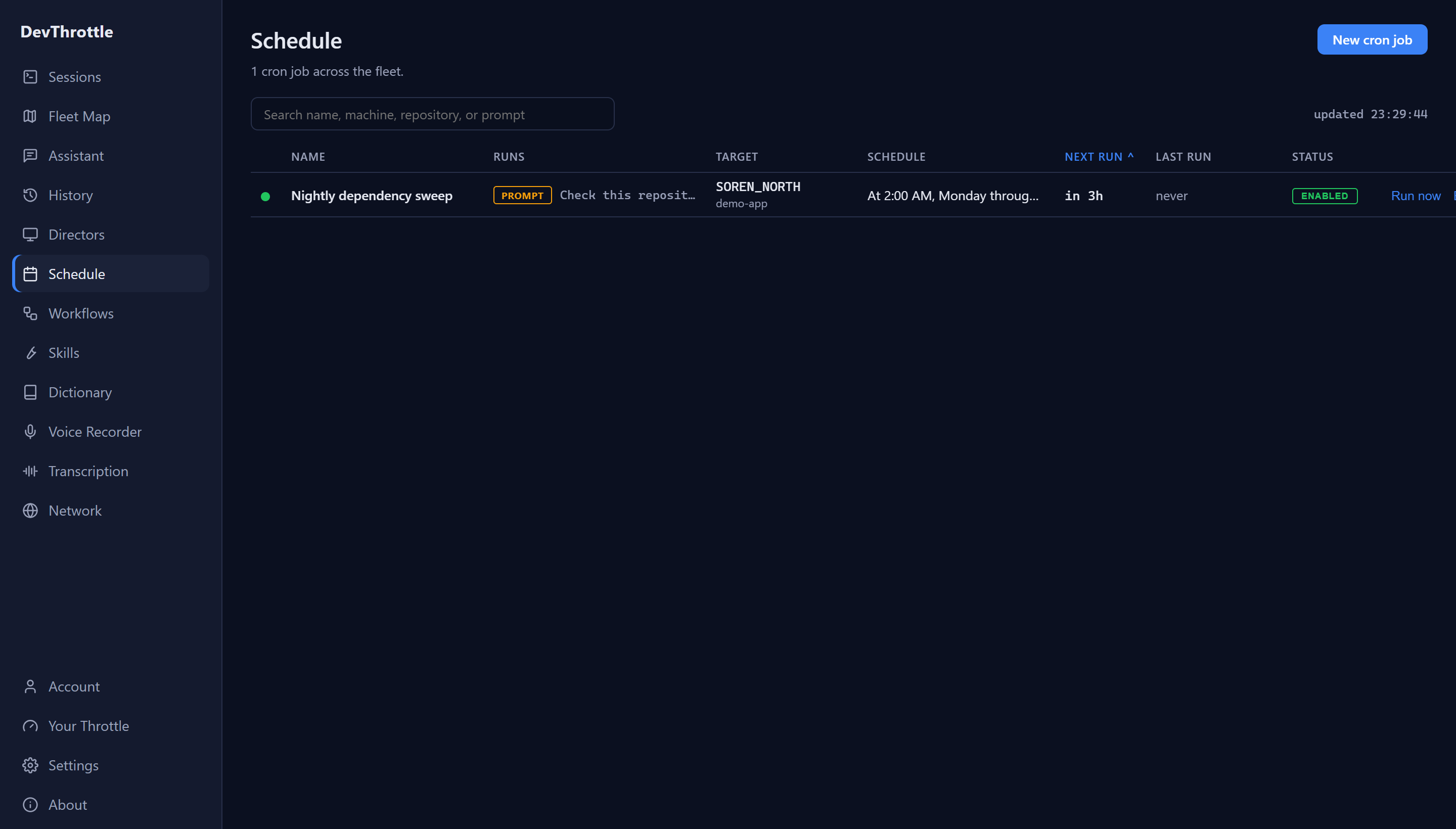
The Cockpit Schedule page listing one job called Nightly dependency sweep, targeting the machine SOREN_NORTH and the demo-app repository, scheduled at 2:00 AM Monday through Friday, next run in 3 hours, status enabled, with a Run now action Now press Run now. Do not wait until two in the morning to find out that the path was wrong or the instruction was ambiguous. The Schedule page tells you the session started; what the agent actually did lives in the session itself. Open the new session in the rail, read what it did, and fix the prompt while you still remember what you meant.
Next
For every field, the REST interface, exactly how firing works and where jobs are stored, see Scheduled runs. To create jobs from a script instead, see Driving DevThrottle from a script. To check what your overnight jobs actually did, see What did I actually get done this week?